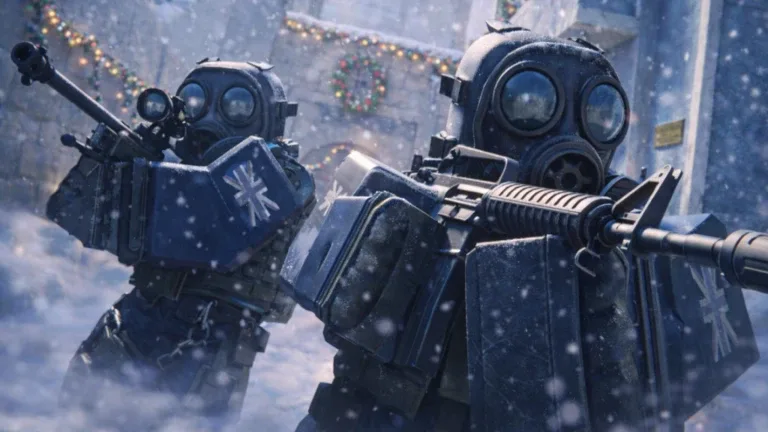
Discover how to optimize your BloxStrike experience. Learn the current status of FOV settings and how to configure your viewmodel for competitive play.
Published: BloxStrike Wiki Editorial Team
Table of Contents
Understanding FOV and Viewmodel Settings in BloxStrike
When diving into BloxStrike, many players look to adjust their Field of View (FOV) to gain a tactical advantage or improve visual comfort. However, it is important to note that as of the current build, a dedicated FOV slider is not yet implemented in the game's settings menu. While the community frequently requests this feature to match the experience of titles like Counter-Strike 2, players currently rely on viewmodel adjustments to manage how much of the game screen is occupied by their weapon and character model.
Since the game is still an evolving Roblox experience, developers are continuously rolling out updates. While you cannot currently change your FOV, you can significantly alter your visual experience by modifying your viewmodel offsets. This allows you to push your weapon further to the side, creating the illusion of more screen space and improved visibility, which effectively serves as a workaround for those seeking a wider perspective.
Configuring Your Viewmodel for Better Visibility
Viewmodel settings are the primary way to customize your character's perspective. By adjusting the X, Y, and Z offsets in the game settings menu, you can tailor how your weapon appears on your screen. Based on community testing, here are three popular configurations to help you optimize your view:
CS 1.6 Classic Style
This setup mimics the nostalgic look of older tactical shooters. Use these values: X Offset: 2.9, Y Offset: -0.8, Z Offset: -1.4.
Centered Viewmodel
Preferred by players who want a symmetrical look. Use these values: X Offset: -8, Y Offset: -0.5, Z Offset: -2.
Minimalist / Maximum Visibility
This configuration pushes the gun far to the right, clearing the center of your screen. Use these values: X Offset: 11.6, Y Offset: -3.3, Z Offset: -2.
Choosing the right viewmodel depends on your personal preference. Many competitive players prefer the "Minimalist" setup because it reduces screen clutter, allowing for better reaction times when scanning corners or tracking enemy movement.
Essential Settings for Competitive Play
While waiting for a native FOV slider, you can improve your performance by focusing on other critical settings that are currently functional. According to community reports, the following adjustments are recommended for players looking to climb the leaderboard:
Radar Settings: Set your "Radar is Rotating" to Off if you prefer static map orientation for faster callouts. A "Radar Map Zoom" of 0.8 is generally recommended to see the majority of the map layout.
Crosshair Customization: Use the classic static style with an alpha of 255 for the best visibility. Experiment with gap settings (e.g., -4 or -5) to find what suits your aim best.
Graphics Quality: Adjust your graphics settings between 4 and 6 to enable light shadows, which provide a better visual balance without sacrificing too much performance.
Jump Bindings: Many experienced players bind "Jump" to the scroll wheel down to facilitate more consistent bunny hopping, a technique common in tactical shooters.
Remember that these settings are highly subjective. It is always a good idea to hop into a private server or a low-stakes match to test how these changes feel during actual gameplay before committing to them for ranked sessions.
Frequently Asked Questions
How do I open the settings menu?
Simply press the "N" key on your keyboard while in a round to access the full configuration panel.
Can I change my FOV in BloxStrike?
Currently, no. There is no FOV slider available in the game's settings. You can only modify your weapon's position using viewmodel offsets.
Why should I change my radar settings?
Adjusting your radar zoom and rotation can help you process map information faster. Many top players prefer a non-rotating radar to keep map awareness consistent with their movement.
Does graphics quality impact gameplay?
Yes. Lower settings (1-3) remove shadows entirely, while higher settings (4+) introduce shadows, which can make the environment look more detailed. There is no competitive advantage to shadows currently, so choose what you find visually pleasing.
By focusing on these available configurations, you can create a highly personalized and efficient setup. Keep an eye on the official game page and community Discord for future updates, as the developer is actively adding new features to the game.